Medication Diary Talk to us
The full tour

Every piece of equipment, and everything it does.

Medication Diary is the operations platform for keeping an aging parent at home. A handful of small devices go in your father's or mother's house. An app on your phone ties them to the caregivers, the schedule and the medications. This page walks through all of it.

In the home

The equipment

These drawings show the units we build and install. The cases are printed in our own shop, and a dispenser and base station like these have been in daily use in a real household for months.
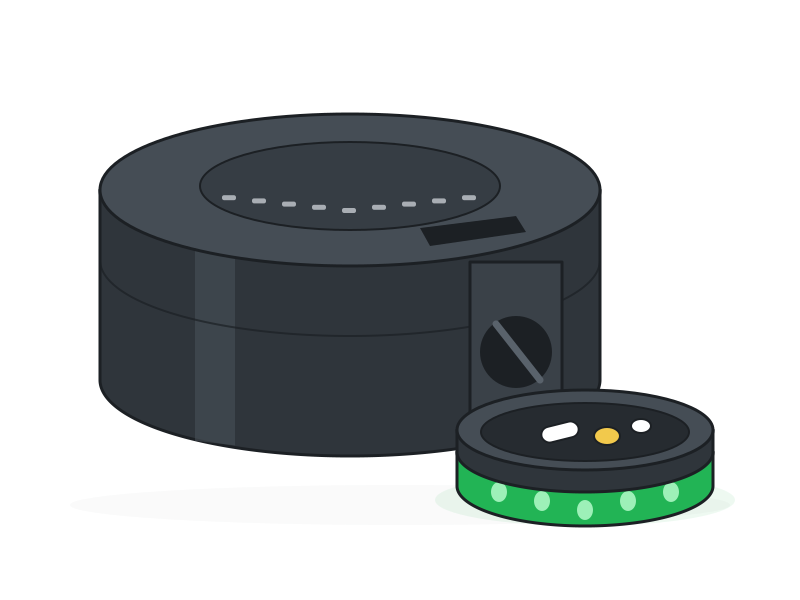
Drawing of the dispenser: a round black unit about the size of a cake tin, with a pill dish at the front lit green.
The dish glows green when pills have just arrived.

The dispenser

Sits on a counter or table. Plugs into the wall.

A turning tray holds 31 doses. At each scheduled time the tray moves one position, the pills drop into the dish at the front, and the dish lights up. The dish senses when the pills are picked up, so the record shows when the dose was actually taken and not just when the alarm went off.

  • Keeps its own schedule. The dispenser holds the schedule itself. If the internet or the WiFi goes down, the pills still come out on time.
  • Shows how long the pills have waited. The dish is green for the first ten minutes, yellow for the next ten, then red.
  • Knows a dose is late. If the pills are still in the dish after the pickup window, the family is told.
  • Won't stack doses. If the last dose is still sitting in the dish, the next one is held back and the family gets an alert instead of two doses in one dish.
  • Skip from the app. A caregiver or family member can skip a dose that shouldn't be taken. The pills drop for discard and the record says "skipped."
  • Several medications per dose. One position in the tray can hold everything due at that hour.
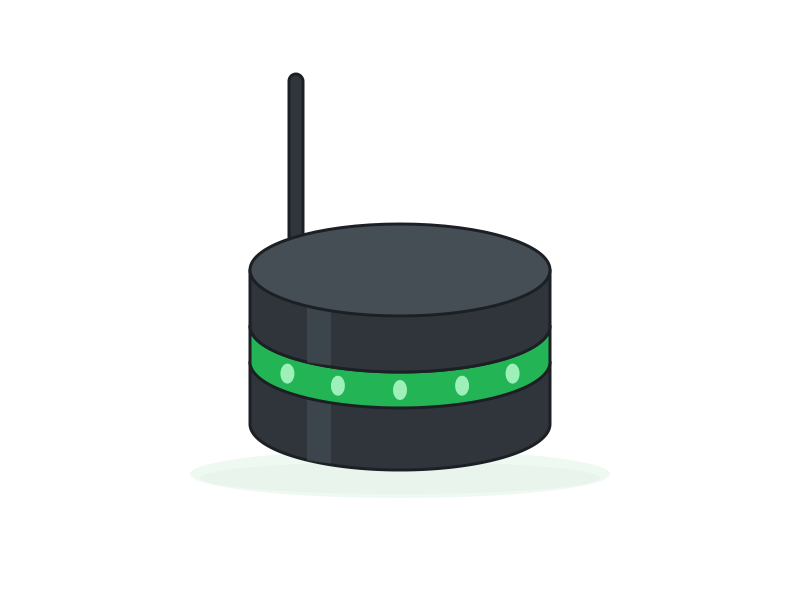
Drawing of the base station: a small black puck with a short antenna and a green light ring around its middle.
The light ring is green when all is well.

The base station

One per home. Sits on a shelf near the middle of the house.

The base station is the hub. Every other device in the house talks to it by its own short-range radio, and it passes what they report to the family over the home's WiFi. It is the only device that needs the WiFi password.

  • A light ring anyone can read. Green when things are normal, red when someone has pressed the help button or a dose is overdue. It breathes slowly and does not flash, because flashing frightens people.
  • Sounds when help is called. A short beep in the house confirms the button press went through.
  • Sends alerts to the family. Alerts go to the people on the care team, on their phones, not to a call center.
  • Switches lights and plugs. It can turn on WiZ bulbs and Shelly plug-in outlets already on the home's network.
  • Updates itself. New software arrives over the internet. Nobody has to visit.
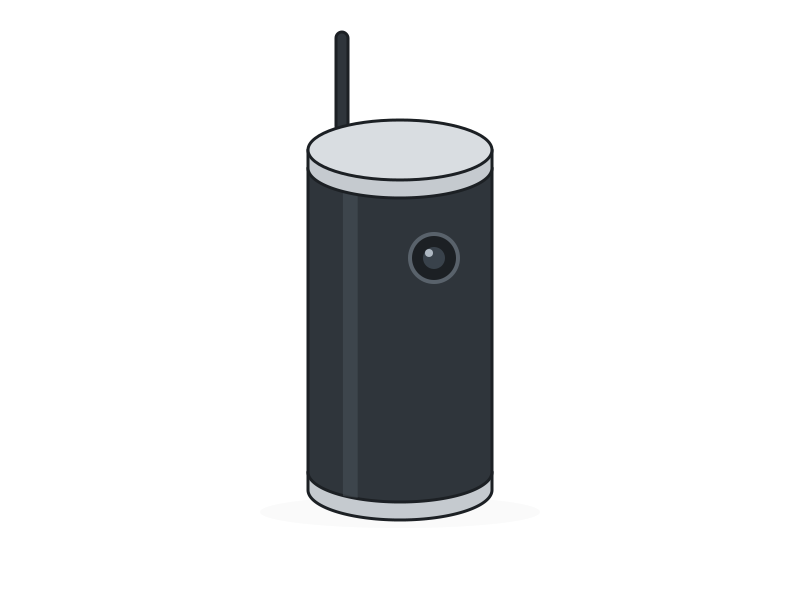
Drawing of the camera: a tall, thin black cylinder with a small lens near the top and an antenna.
Optional. Some households want it, some don't.

The camera

Optional. Stands on a shelf. Plugs into the wall.

The camera takes still pictures. It never records video and it has no microphone. Its job is to let the family look at a room when something seems wrong, without driving over.

  • A still every few minutes, or on request. The family can press "capture now" in the app and see the room within seconds.
  • More pictures during an alert. When the help button is pressed, the cameras take pictures more often until someone answers.
  • Behind a login. Pictures can only be seen by signed-in members of the household. A copied link does not work.
  • Kept for one week. Pictures older than seven days are permanently deleted.
  • One per room you choose. Each camera is named for its room in the app.

The rest of the kit

These are part of the same system.
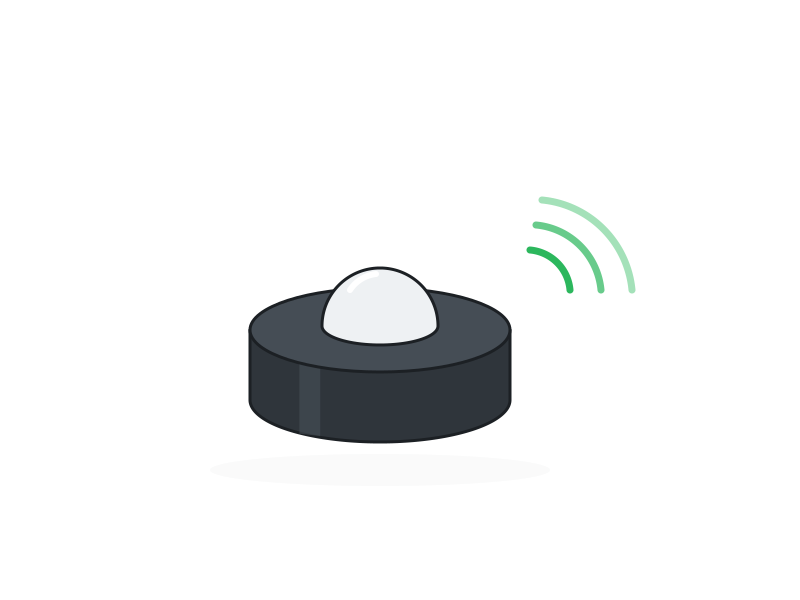
Drawing of a motion sensor: a small black puck with a white sensing dome. In every kit

Motion sensors

Small battery-powered sensors, up to six, one per room: bedroom, bathroom, kitchen, living room, hallway. They notice movement. They do not take pictures or record sound.

You draw the house once in the app, and the dashboard answers in plain words where the last movement was and how long ago. If the house has been quiet for too long, the family is told. While a caregiver is checked in the sensors rest, so a caregiver's movement isn't counted as your father's.
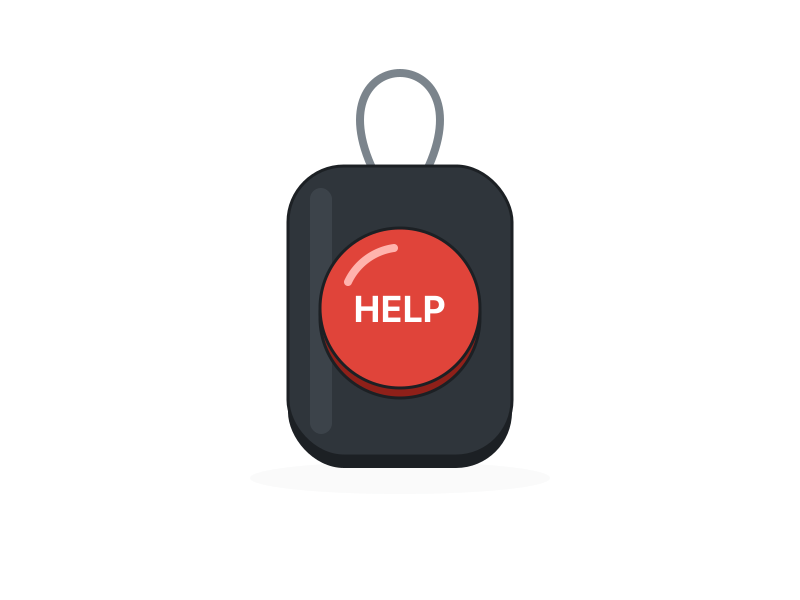
Drawing of the help button: a small pendant with one large red button. In every kit

Help button

A battery-powered button to keep at the bedside or in a pocket. One press and the base station turns red and beeps, every family phone gets an alert with sound, and any remote light in a relative's house turns red and beeps too.

It keeps asking until a person answers. When someone taps "I'm on my way," the lights in the house change so your parent can see the call was heard. The button reports its own battery level, and the family is warned when it runs low.
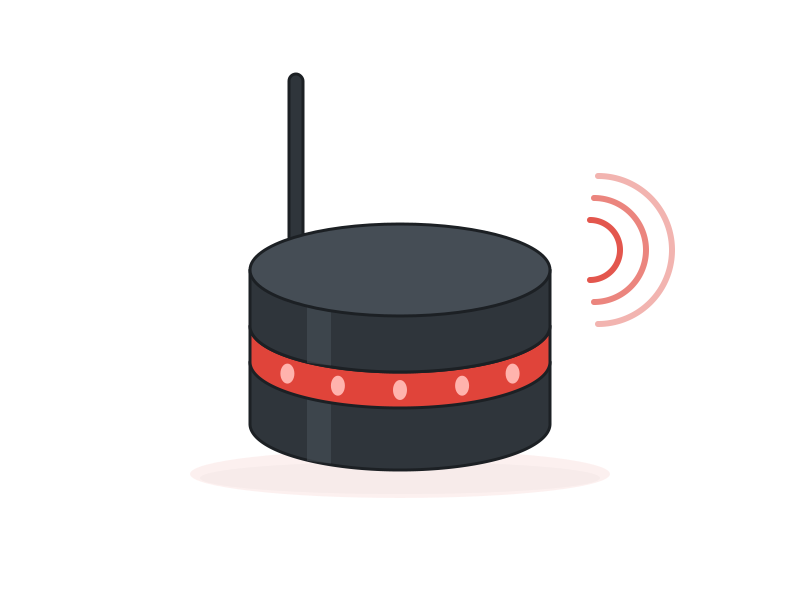
Drawing of the remote light: the same puck as the base station, its ring red and beeping. For family elsewhere

Remote light

The same puck as the base station, but it lives in a family member's own home, across town or across the country. Its ring mirrors what is happening at the parent's house: green most of the time, red when something is wrong.

When the help button is pressed it beeps, and keeps beeping every 20 seconds until someone answers. Nobody has to remember to check an app. Every family member who wants one can have one.
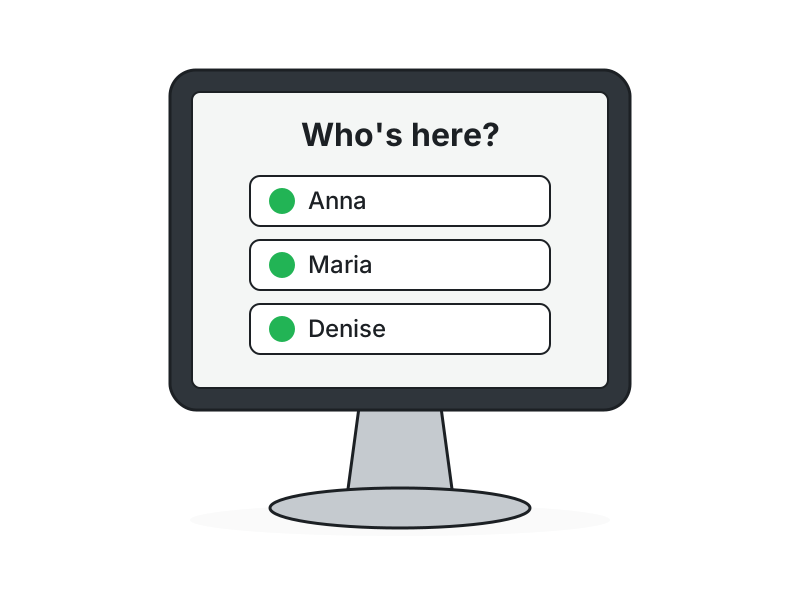
Drawing of the house tablet on a stand, asking Who's here? For caregivers

House tablet

An ordinary tablet on a stand that stays in the house. It shows "Who's here?" A caregiver taps their name, enters a PIN, and is checked in to their shift. No email address, no password, no app on their own phone.

Checking out returns the tablet to the start screen for the next person.
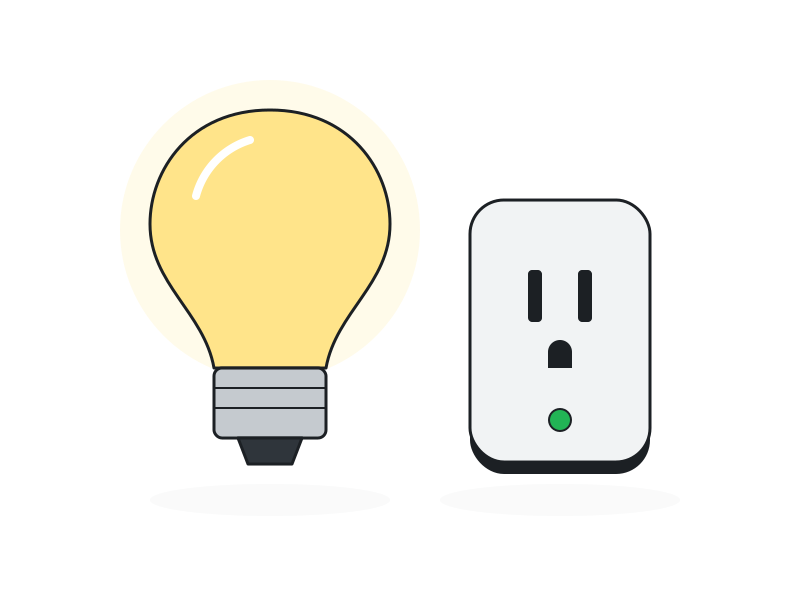
Drawing of a lit light bulb beside a plug-in outlet. Optional

Lights and plugs

Works with WiZ light bulbs and Shelly plug-in outlets that you can buy anywhere. A bedside lamp can come on by itself when the help button is pressed. A hallway light can come on when there is movement after dark.

The app finds them on the home network, and shows whether each one is reachable.
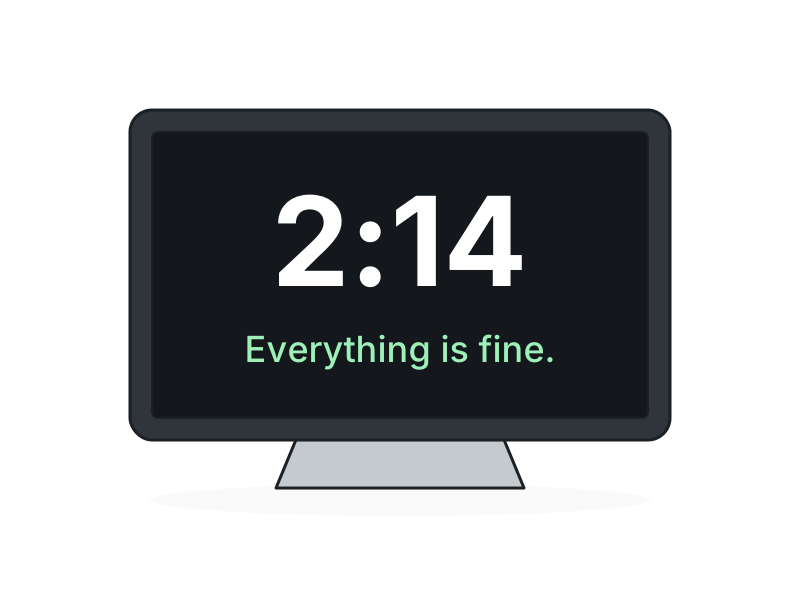
Drawing of the bedside display showing a large clock and the words Everything is fine. In development

Bedside display

A screen for the nightstand with a large clock and the words "Everything is fine." After a press of the help button it says the call went through, and then that the family has answered, in a familiar recorded voice.

We are building this now for our first household. It is not yet part of an installation.

One shared language

What the lights mean

The base station, the remote light and the dispenser dish all use the same few colors, so anyone in either house can read the situation at a glance.

GreenAll is well. On the dispenser dish: pills have just arrived.
YellowOn the dispenser dish: the pills have been waiting more than ten minutes.
RedThe help button was pressed, or a dose is overdue. On the dish: the pills have waited twenty minutes or more. It stays red until someone deals with it.
CyanA family member has answered and is on the way.
PurpleOn the dispenser: a skipped dose is in the dish, to be thrown away.
On your phone

Everything the app does

The app runs in the browser on any phone, tablet or computer. There is nothing to install from an app store. Each person signs in as themselves and sees what fits their role.

The home screen

The four questions you actually have
One plain headline
"Everything looks normal," or exactly what needs attention and why.
Pills
Whether the last dose was taken, and at what time.
Moving around
Where the last movement was and how long ago, on a drawing of the house.
Caregiver
Who is there now, and who is coming next.
Anything wrong
Open alerts, with a button that takes you straight to the fix.

Medications

Tied to the dispenser, not to anyone's memory
Medication list and schedule
Each medication with its dose times, how important it is, and how long the pickup window should be.
Guided refill
The app walks you through filling the tray one bottle at a time ("put one of these in positions 1, 3, 5..."), then a second pass position by position to check the work.
Top-ups, not just full refills
The app knows where the tray is and works out which positions are safe to fill.
Controlled substances
Flagged so that a family caregiver handles them, not a visiting nurse or aide.
Dose history
Every dose: dispensed, picked up, late, skipped or blocked, with the time.
Pill supply
Each fill comes off the count, so you can see when a bottle is running low.

Alerts

To the right people, until someone answers
Phone notifications with sound
Help-button presses, overdue doses, a house that has been quiet too long.
"I'm on my way"
One tap tells the rest of the family, and changes the lights in the parent's house, so two people don't both drive over and nobody assumes someone else has it.
Repeats if nobody answers
An unanswered call for help comes back. It does not quietly expire.
Equipment looking after itself
Low batteries and sensors that have gone silent raise their own alert before they become a gap.
A record of every alert
What happened, who answered, when, and any note they left.

Caregivers and shifts

Agency staff, private hires and family, on one schedule
Shift schedule
Repeating weekly patterns that you can edit or remove, plus one-off shifts.
Open shifts and call-offs
When someone can't make it, the shift is offered to the rest of the team and they are notified.
Check-in and check-out
On the house tablet with a PIN, or on the caregiver's own phone. You know when a shift really started and ended.
One screen for the whole shift
The caregiver sees today's tasks, notes left by the last shift, and can log a meal, a blood pressure, a note or a photo without leaving the page.
Handoff notes
What one caregiver writes at check-out is the first thing the next one reads.
"This worries me"
A caregiver can raise a flag to the family about something they have noticed.
Roster
Each caregiver's agency, role and rate, visible to family only.

Health record

What the doctor asks about, already written down
Vitals
Blood pressure, weight and heart rate, with a chart for each.
Exercises
The physical therapy list, checked off daily, with the week at a glance.
Care photos
A sore, a rash or a bruise, photographed and kept by body area, with earlier photos side by side so you can see whether it is getting better.
Care notes
A running log everyone on the team can read and add to. Family can pin the important ones.
Emergency-room link
A link or printed card that shows ER staff the allergies, current medications, recent vitals and emergency contact. You decide how long it works and can cancel it at any time.
Profile
Allergies, physician and emergency contact in one place.

Running the household

The parts that used to live in a notebook
Appointments
Doctor visits and recurring appointments on the same calendar as the shifts.
Supplies
A shopping list any caregiver can add to when they notice something is running out.
Family chat
A private thread for family only. Caregivers cannot see it.
When family comes to stay
Pause the quiet-house alarms for a visit of a few hours or a few weeks. They resume on the date you set, so nobody forgets to turn them back on.
Lights and plugs
Turn them on and off from the app and set simple rules, such as "hallway light on with movement after sunset."

Who sees what

Different people, different views, one set of facts
The family member running things
Sees and manages everything.
Other family
The same picture of the day, with as much or as little involvement as they want.
Visiting caregivers
See what they need for their shift. They don't see pay rates, the family chat or other caregivers' details. When a caregiver is removed, their access ends.
A nurse or clinical advisor
Can read and add to the care notes. Like caregivers, they don't see the family chat.
Getting set up

What installation looks like

We install it with you. There is no drilling and no wiring. Devices are matched to your base station before they leave our shop, so nothing has to be paired in the house.

  1. Plug in the base station and give it the WiFi password.It is the only device that needs it.
  2. Place the sensors, the button and any cameras.They stand on shelves or stick to a wall. We keep sensors away from heat sources like a coffee maker, which can fool them.
  3. Draw the house in the app.Rooms, the bed, the usual chair. This is what lets the app say where the last movement was.
  4. Enter the medications and fill the tray.The app guides the fill bottle by bottle, then sends the schedule to the dispenser.
  5. Add the family and the caregivers.Family sign in on their phones. Caregivers get a PIN for the house tablet.
Privacy

What it sees, and what it never does

Straight talk

What we're not

We're not a medical alert service.

There is no call center. The help button reaches your family and your caregivers. If you want a pendant that dials an operator, other companies do that well.

We don't supply caregivers.

We help the ones you already have, paid or family, work from the same schedule and the same facts.

We don't make medical judgments.

The system records what happened. What it means is for you and the doctor.

We're early.

The equipment on this page is built in small numbers in our shop and is running in our first household. We are installing in a few households at a time so we can learn from each one.

Talk to us about your household.

Tell us who is running things, how many caregivers are involved, and what isn't working. We'll tell you honestly whether we're a fit.

Or write to support@medicationdiary.com